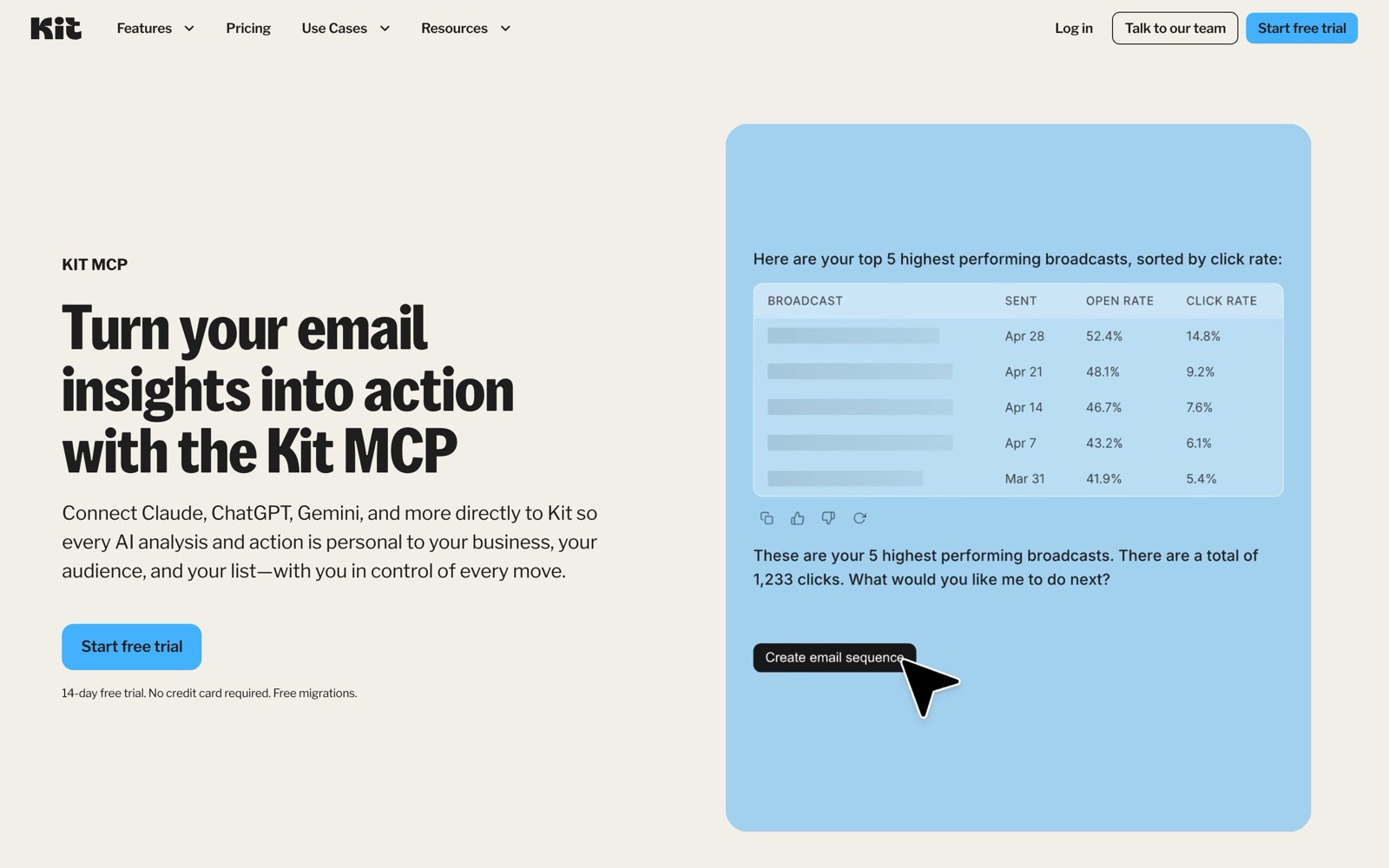
The Kit MCP lets Claude, ChatGPT, Cursor and other AI assistants read your Kit account and act on it: pull broadcast stats, find your most engaged subscribers, tag them, draft a sequence. You add one URL, https://app.kit.com/mcp, sign in to Kit, and click Allow; it needs a paid Kit plan to run. Creator starts at $39 a month. Sends, deletions and unsubscribes always wait for your click inside Kit.
We wrote this from Kit’s own setup guide in its help center, its developer docs and its product page, all read on October 5, 2026. We haven’t connected a live Kit account for this post, so the setup steps are Kit’s, and the worked example near the end is labelled as a hypothetical. The question this guide answers that Kit’s pages don’t in one place: what the setup looks like in each assistant, what the plan gate is, and where the safety lines sit before you let an AI near your list.
What the Kit MCP is, and why Kit now calls it AI Connectors
MCP, the Model Context Protocol, is an open standard for plugging AI assistants into outside services. A service publishes an MCP server; an assistant that speaks MCP can then call that server’s tools. Kit’s server exposes your account: subscribers, tags, segments, sequences, broadcasts, forms, landing pages, custom fields, purchases and reports.
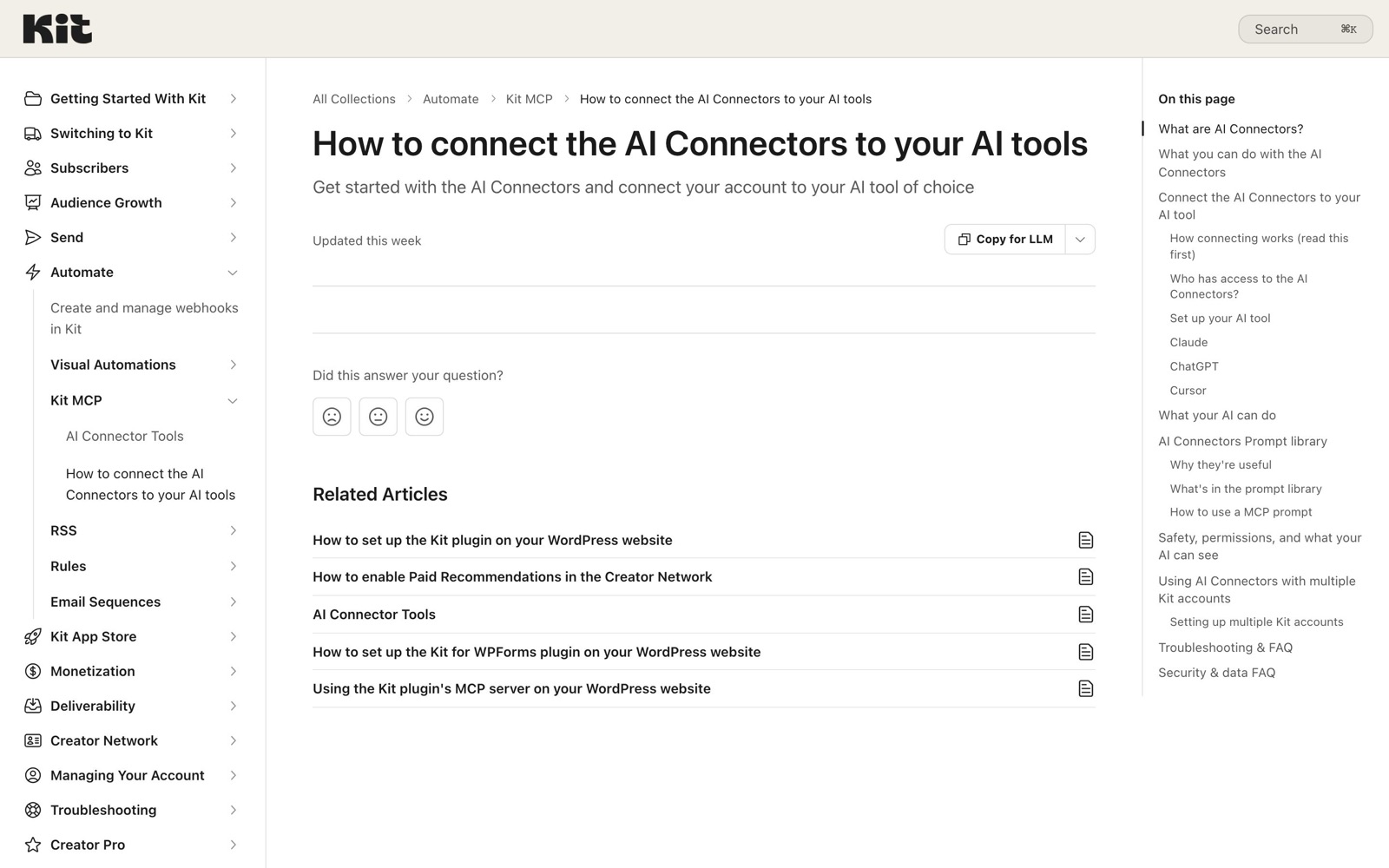
Kit’s developer docs describe it as “essentially a one-to-one mapping” of Kit’s API v4, with every API endpoint available as an MCP tool. The help center counts more than 65 tools. Kit’s marketing page says “Kit MCP”; the help center has started calling the same thing “AI Connectors”. If you search Kit’s help for one name and find the other, it’s the same feature.
Kit runs a second, unrelated server at https://developers.kit.com/mcp. That one is read-only access to Kit’s developer documentation, for coding agents building on the API. It can’t see your account. If you add both to the same tool, Kit suggests naming them kit and kit-docs.
Before you start: which Kit plan you need
The connector is part of Kit’s paid plans. Kit’s help article is specific about the free plan: you can connect and see the tool list, but running any tool returns an upgrade prompt instead of doing the work.
| Kit plan | Price at 1,000 subscribers | Kit MCP | Users who can connect their own AI tool |
|---|---|---|---|
| Free | $0 (up to 10,000 subscribers) | Connects, but every tool asks you to upgrade | 1 |
| Creator | $39/month, or $390/year | Yes | 2 |
| Pro | $79/month, or $790/year | Yes | Unlimited |
Prices are from Kit’s pricing page on October 5, 2026; they rise with your list size, and the full Kit pricing breakdown has every tier. If you’re testing, Creator and Pro both have a 14-day trial without a card, which is enough time to connect an assistant and run the prompts below.
You also need an assistant that supports remote MCP servers. Kit lists setup steps for Claude, ChatGPT and Cursor, and points to the MCP docs of Claude Code, Windsurf, Cline, Gemini and Codex for the rest. No coding is involved.
Every user on your Kit account can connect their own assistant, with the same access they already have as editors. Check who has a login before you turn this on.
How to connect the Kit MCP to Claude
Kit’s steps for Claude Desktop:
- Open Claude Desktop and go to Customize → Connectors → Add custom connector.
- Name it Kit and paste the URL
https://app.kit.com/mcp. - Save and restart Claude Desktop. A browser window opens.
- Sign in to Kit, review the permissions, and click Allow. You’ll see a “Connected to Kit” page and return to Claude.
If you prefer editing the config file, Kit gives this snippet for claude_desktop_config.json (on macOS it’s in ~/Library/Application Support/Claude/, on Windows in %APPDATA%\Claude\):
{
  "mcpServers": {
    "kit": {
      "url": "https://app.kit.com/mcp"
    }
  }
}
In Claude Code, the terminal agent, the equivalent is one command, using Claude Code’s standard syntax for remote HTTP servers:
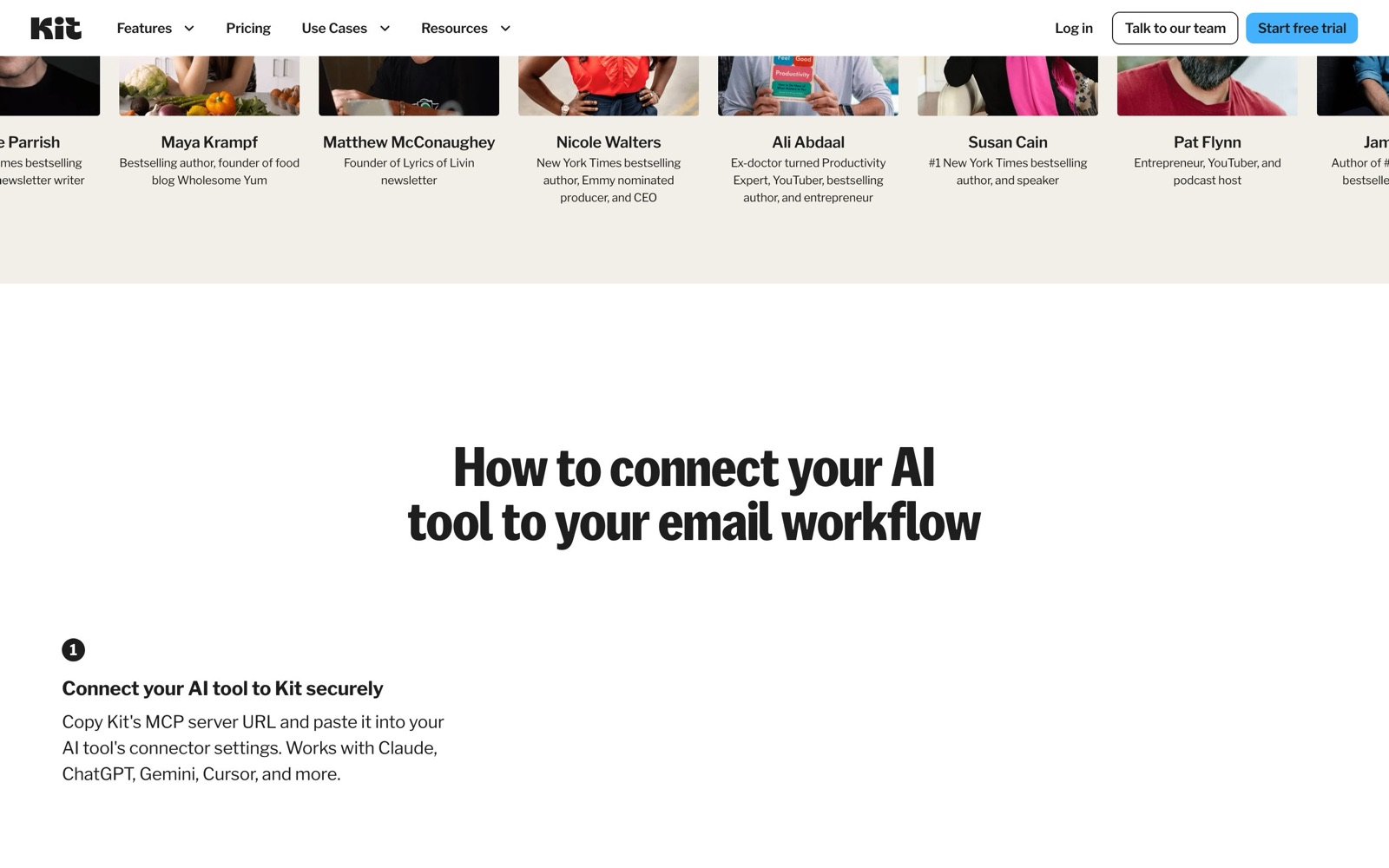
claude mcp add --transport http kit https://app.kit.com/mcpClaude Code then opens the same Kit sign-in when you first use the server. Kit’s help notes that desktop apps like Claude Desktop and Cursor use a custom link to bring you back after sign-in; if your browser asks to open the app, that’s expected.
How to connect ChatGPT and Cursor
ChatGPT works on the web only, not in the desktop app, and it needs Developer mode:
- In ChatGPT settings, open Security and login → Developer mode and turn it on. (Some Business, Enterprise and Edu workspaces still have it under Settings → Apps → Advanced settings.)
- Create a new app with the name Kit, a short description, the MCP server URL
https://app.kit.com/mcp, connection method “public endpoint” and authentication “OAuth”. - Confirm, then sign in to Kit and authorize access.
- Start a new chat, choose Developer mode in the composer and select Kit, or mention @Kit where your plan supports app mentions.
Kit’s help says OpenAI lists Plus, Pro, Business, Enterprise and Education accounts as eligible for Developer mode on the web, and that available tools and write access can vary by plan and workspace policy.
Cursor takes four steps: Settings → Tools & Integrations → MCP Tools, click Add server, paste the URL, save, and sign in when the browser opens. The config file uses the same JSON as Claude’s.
Connecting more than one Kit account? Kit’s trick is a different suffix per connector, such as https://app.kit.com/mcp?brand-a and https://app.kit.com/mcp?brand-b, each with its own name. Your assistant then knows which account you mean when you say “Brand A’s open rate last week”.
Kit MCP prompts worth running first
Kit’s help center publishes example prompts and a prompt library that shows up in the slash-command menu of Claude Desktop and Cursor. These are the ones from Kit’s list that we’d run first, sorted by how much they can change:
| What you want | Prompt (Kit’s example) | What the AI does in Kit |
|---|---|---|
| A performance read | “Summarize my last 5 Broadcasts and their open rates.” | Reads only |
| A trend | “How has my open rate trended over the last 90 days?” | Reads only |
| Know your audience | “Who are my most engaged subscribers in the last 30 days?” | Reads only |
| Clean up tags | “Which Tags have not had any activity? Suggest any I can archive.” | Reads, then suggests |
| Act on a segment | “Find my most engaged subscribers, tag them VIP, and draft a Broadcast just for them.” | Writes tags, drafts an email |
| Build a sequence | “Build me a 5-part email sequence for new subscribers.” | Creates a draft sequence |
| Edit a landing page | “Update the headline and button copy to be more high-converting on this Landing Page: [URL]” | Edits and can publish the page |
Start with the read-only rows. They tell you whether the assistant understands your account before you let it write anything. Kit’s help says the assistant can also edit landing pages and “publish changes instantly”, so a page edit can go live without the confirm step a broadcast gets. Ask for the new copy in chat first and apply it once you’ve read it.
Safety: what the AI can and can’t do on its own
Kit’s help puts the protections in three layers, and it’s worth knowing which layer is whose.
Kit’s layer. Every tool carries a risk tag (read, write or destructive) that clients use to decide when to ask before acting. For destructive or outward-facing actions, sending a broadcast, deleting a sequence, unsubscribing a subscriber or firing a webhook, the connector doesn’t act at all. It returns a link into Kit, and the change only happens when you click Confirm inside the Kit app. An AI can draft and schedule, but it can’t send a broadcast to your list without your click in Kit.
Your assistant’s layer. Whether the assistant asks before each read or write depends on its own permission settings. ChatGPT, for example, ranges from asking every time to allowing lower-risk changes without asking. If you set your client to approve everything, Kit’s help warns, it may make changes without checking with you.
Your layer. Review each proposed write. If something goes wrong, Kit suggests asking the assistant to undo it first. The connector gives the AI nothing you couldn’t already do yourself in Kit, so it can’t exceed your own account permissions, but it can do anything your login can.
Two more limits from Kit’s docs: each connection is rate-limited to 120 requests a minute, and bulk jobs pause for confirmation roughly every 100 subscribers, because Kit returns subscribers a page at a time and clients confirm each call. That’s by design, and Kit says it can’t switch it off.
On data: Kit says it doesn’t train AI models on Kit data. Once you connect Claude or ChatGPT, it’s that company’s settings that decide whether your prompts and the subscriber data in them are used for training. Check those settings before you paste a segment of real customers into a chat.
A worked example: a weekly newsletter check-in
This is hypothetical, built from Kit’s documented tools. Suppose you write a weekly newsletter on Kit Creator with 4,000 subscribers, and Monday morning is when you look at last week’s numbers.
- Ask for the read. “Summarize my last 4 broadcasts: opens, clicks, unsubscribes, and which links got clicked.” The assistant reads broadcast stats; nothing changes.
- Ask why. “Compare the best and worst by subject line style and send day.” Still read-only. It’s your call whether the pattern is real or noise from four data points.
- Find the quiet readers. “List subscribers who haven’t opened in 90 days, grouped by the tag they joined with.” Read-only again, and useful before your tier rolls from 3,000 to 5,000 on the Kit price ladder.
- Act, with approval. “Tag them
cold-90and draft a two-email re-engagement sequence.” Your assistant asks before writing the tag; the sequence arrives as a draft in Kit. - Send from Kit. You read the draft in Kit’s editor and start it there. If you’d asked the AI to send a broadcast instead, Kit would have handed you a confirm link.
None of this replaces reading your own emails. The time saved is the export-and-spreadsheet step, which Kit’s product page quotes one creator, Dan Cumberland, putting at “nearly three hours a week”; that’s his number, not ours.
Mistakes to avoid and fixes when it won’t connect
- Using the wrong URL. Paste
https://app.kit.com/mcpexactly, with no trailing slash. Thedevelopers.kit.com/mcpaddress is the docs server and can’t see your account. - Blocking the sign-in pop-up. The OAuth flow opens a browser tab on app.kit.com; allow pop-ups for it.
- Not restarting the client. Some assistants only load new servers after a restart.
- Stuck on “Exchanging token”. Close and reopen the client; if it persists, revoke access in Kit’s MCP settings and connect again.
- Tools failing in ChatGPT after a Kit update. ChatGPT can keep an old copy of Kit’s tool list. Kit’s fix: delete the app in ChatGPT (disconnecting isn’t enough), revoke it in Kit, and create it again under a new name such as “Kit AI”.
- Leaving tokens live. Removing the server from your assistant doesn’t revoke it. Revoke from Kit’s MCP settings page when you stop using a client or a contractor leaves.
- Approving everything to save clicks. “Always allow” is reasonable for read tools. For writes, keep the prompt.
Is the Kit MCP worth paying for?
If you’re already on Creator or Pro, it’s included, and the read-only prompts alone are worth ten minutes to set up. If you’re on Free, the MCP by itself isn’t a reason to pay $39 a month; sequences and automations are, and the MCP comes with them. Kit isn’t alone here: MailerLite lists an MCP on its free plan and beehiiv on Lite, so if AI access is the deciding feature, compare them in our ranking of email platforms for creators.
For the reference facts on Kit, plans and limits, see the Kit tool page. If you’re building more of your work around AI assistants, the AI builders stack and the must-have tools for founders are where we’d look next, and our guide to web scraping with Claude shows the same MCP pattern for web data.


 ChatGPT
 Claude
 Perplexity
 Grok
Grok